Guide
Connect Claude to Crismo
Let your team work on your process library straight from Claude: ask questions about your processes, find the right diagram, draft and update models. Each person connects with their own Crismo login (including SSO), so Claude only ever does what that person is allowed to do. No API keys to create, copy or rotate. Works with claude.ai, Claude Desktop and Claude Code. An admin adds the connector once (about 2 minutes); after that every person connects in a few clicks.
https://mcp.crismo.io/mcpHow it works
Crismo is added to Claude as a custom connector (a remote MCP server). Adding the connector does not give anyone access by itself. Access happens per person: the first time someone uses it, Claude opens a Crismo sign-in, the person sees what Claude will be allowed to do, and clicks Allow access.
- Admin, once: adds the Crismo connector in Claude (organization settings on Team and Enterprise, personal settings on Pro and Max).
- Each person, once: clicks Connect in Claude, signs in to Crismo, and allows access on the Crismo consent page.
- Every request: Crismo checks the person’s current membership, role and plan. Promotions, demotions, removals and revocations apply on the very next request.
| Who | Where | What |
|---|---|---|
| Crismo workspace Owner | Crismo | Make sure the plan includes the AI package; later, see and revoke connections |
| Claude organization Owner | Claude organization settings | Add the Crismo connector once for the whole organization |
| Every team member | Claude settings + Crismo sign-in | Click Connect, sign in, allow access |
Requirements
- A Crismo workspace with the AI package: the Teams plan with the Augment package, or Enterprise. Without it, the sign-in shows “Connecting Claude is part of the AI package”.
- A Claude plan that supports custom connectors: Pro, Max, Team or Enterprise.
- On Claude Team and Enterprise: an Owner of your Claude organization to add the connector.
- Each person needs their own Crismo account in the workspace. Claude works with that person’s role.
Step 1: Prepare your Crismo workspace
There is nothing to switch on inside Crismo. Check two things:
- Plan: your workspace includes the AI package (see pricing, or ask contact@crismo.io).
- People and roles: everyone who should use Claude is a member with the right role. Claude never gets more rights than the person; give view-only people the Contributor role.
As a workspace Owner you also find the connector URL and a short how-to for your team under Profile → Workspace → AI assistants.
Step 2: Add the connector in your Claude organization (Team and Enterprise)
On Claude Team and Enterprise, custom connectors are added by an Owner of the Claude organization. Members cannot add them themselves; once added, the connector is offered to everyone in the organization.
- Sign in to claude.ai as an Owner and open Admin settings → Connectors.
- Click Add custom connector (in some versions: Add → Custom).
- Name:
Crismo - Remote MCP server URL:
https://mcp.crismo.io/mcp - Leave Advanced settings (OAuth Client ID and Client secret) empty. Claude registers itself with Crismo automatically.
- Click Add. Claude checks the server and finds the Crismo sign-in.
Optional, recommended: in the same settings you can decide whether members may add other custom connectors, and how Claude asks before using tools. Crismo labels every tool as read-only, changing data or destructive, so Claude can let reads run and ask before anything is deleted.
Claude Pro and Max (personal accounts)
There is no organization admin. Each person adds the connector themselves: in Claude open Settings → Connectors → Add custom connector, enter the name Crismo and the URL above, leave the advanced settings empty, click Add, then continue with Connect your account.
Connect your account (every team member)
In claude.ai or Claude Desktop (both use the same settings; a connection made in one also works in the other and in the Claude mobile apps):
- Open Settings → Connectors, find Crismo and click Connect.
- A browser window opens the Crismo sign-in. Sign in the way you always do: email and password, Google, or Continue with work account (SSO).
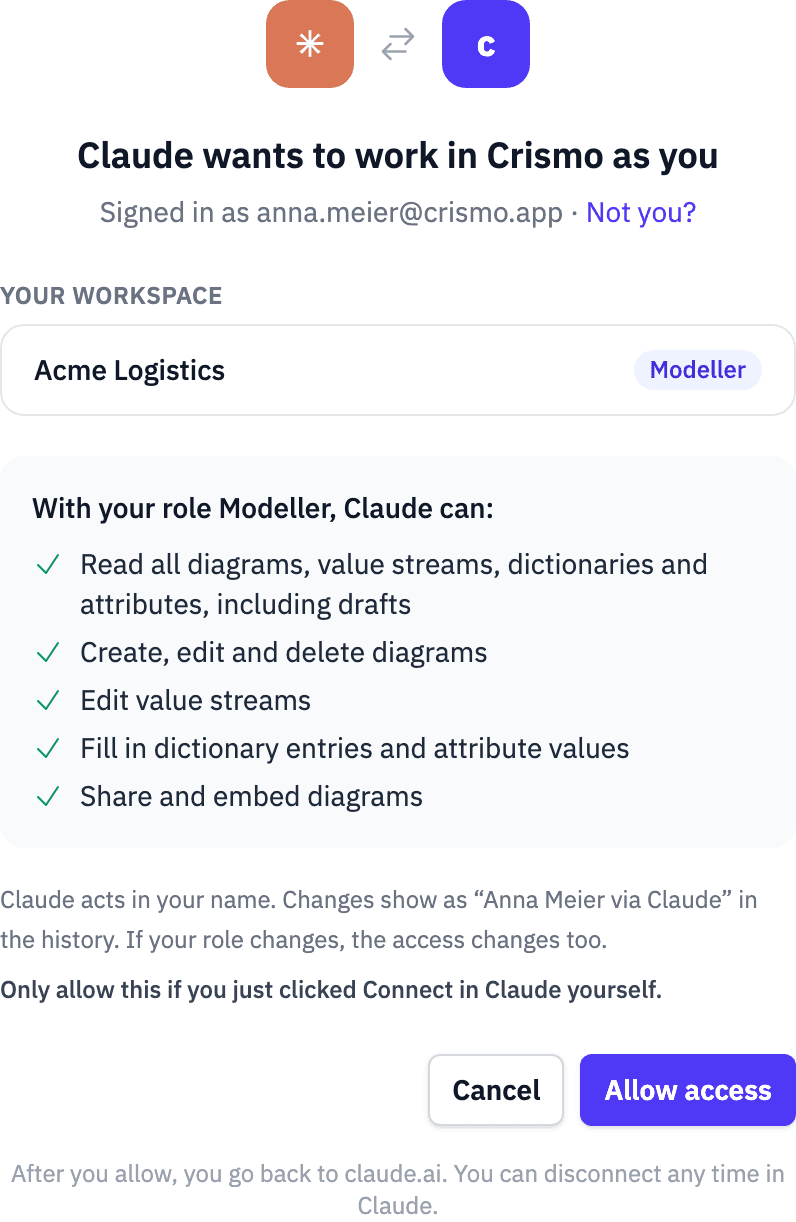
- Check the consent page (see below) and click Allow access.
- You are taken back to Claude, which shows Crismo as connected.
- In a chat, open the + (tools) menu and make sure Crismo is switched on.
Try it:
List my Crismo diagrams.
Which processes involve the role "Accounts Payable"?
Create a diagram called "Supplier onboarding" with the steps we just discussed.
You stay connected; Claude renews access in the background. If you don’t use the connector for 90 days, or someone revokes it, Claude asks you to connect again. To disconnect yourself, use Disconnect next to Crismo in Claude’s connector settings.
Claude Code
Claude Code keeps its own list of servers. Add Crismo once, then authenticate:
claude mcp add --transport http crismo https://mcp.crismo.io/mcp
claude
> /mcp        # choose "crismo" → Authenticate
Your browser opens the same Crismo sign-in and consent page. Add --scope user to make Crismo available in all your projects. If your company restricts outgoing traffic, allow mcp.crismo.io and app.crismo.io.
What you see on the consent page
Before anything is connected, Crismo shows exactly what you are agreeing to:
- “Claude wants to work in Crismo as you”, with the account you are signed in as (and Not you? to switch).
- Your workspace and your role, and the list of things Claude may do with that role.
- That Claude acts in your name: changes show in the history as “Your Name via Claude”.
- Where you will be sent back to after allowing (for example
claude.ai). - The reminder “Only allow this if you just clicked Connect in Claude yourself.”
What Claude may do, by role
Claude has exactly the rights of the person who connected it, in that person’s workspace. The connection itself carries no rights: Crismo re-checks the role on every request, so changing someone’s role changes what Claude can do immediately.
| Role | Claude can |
|---|---|
| Contributor | View only: read published diagrams, value streams, dictionaries and attributes. Claude cannot change anything. |
| Modeller | Read everything including drafts; create, edit and delete diagrams; edit value streams; fill in dictionary entries and attribute values; share and embed diagrams. |
| Admin | Everything a Modeller can, plus define attribute fields and dictionaries and manage workspace settings and members. |
| Owner | Everything an Admin can, plus Owner-only actions such as billing and ownership. |
View-only people only see read tools in Claude. If Claude still tries to change something, Crismo refuses with a clear message such as “Your role (Contributor) can’t change content…”. The full tool list is in the MCP tool catalog.
See and revoke connections (workspace Owners)
In Crismo, go to Profile → Workspace → AI assistants. You see every connection in your workspace: the assistant, who connected it, when, and when it was last used.
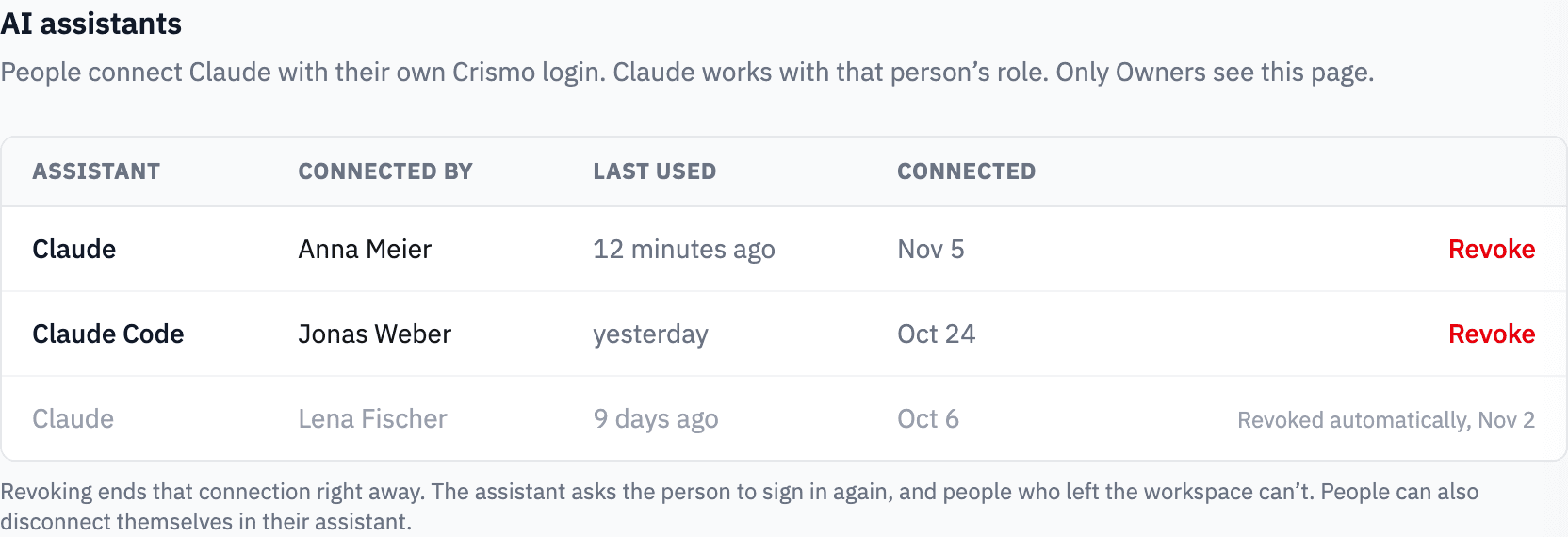
- Revoke ends a connection right away. Claude’s next request fails and it asks the person to sign in again. Revoked connections stay in the list with who revoked them and when.
- People who leave: when you remove someone from the workspace, their Claude access stops on the next request, and their connections are revoked automatically (shown as Revoked automatically). They cannot reconnect unless they are invited back.
- Role changes need no action: Claude follows the new role on the next request.
- History: everything Claude changed stays attributed as “Name via Claude”, also after a revoke.
Workspaces with Single Sign-On
Connecting Claude works with SSO out of the box: people choose Continue with work account on the Crismo sign-in. If your workspace has Require SSO switched on, Crismo is stricter, because a connection outlives a browser session:
- Approving needs a sign-in through your company identity provider; a password or Google session is not accepted.
- That company sign-in must be recent (within the last hour).
- Otherwise the consent page shows “Sign in with your company account” instead of Allow. One click signs the person in again through your IdP and brings them back to the consent page.
This means your identity provider’s policies (MFA, conditional access, offboarding) apply at the moment someone connects Claude. Offboarding in Crismo (removing the member) ends their Claude access as described above.
Moving off personal API keys
If your team connected Claude with a personal API key and the @crismo-io/mcp npm package, that keeps working for now. API responses for personal keys carry a Deprecation notice: personal API keys are being retired for AI assistants. To switch:
- Add the Crismo connector and connect as described above.
- Remove the old
crismoentry fromclaude_desktop_config.json(or your client’s MCP config) and restart Claude. - Revoke the old key in Crismo under Profile → Workspace → API Keys.
Other assistants and scripts that need a key (Cursor, Cline, CI jobs) are covered in the MCP server reference and the REST API reference.
Security
- Per person, per workspace. A connection belongs to one person in one workspace. Nobody shares a login or a key.
- No standing rights. Membership, role and plan are checked on every request; tokens grant nothing on their own.
- Standard sign-in. OAuth 2.1 with PKCE, as defined by the MCP authorization specification. Crismo stores only hashes of tokens; access tokens last one hour and are renewed in the background.
- Theft protection. If a renewal token is ever reused, Crismo revokes the whole connection.
- Fair use. Up to 120 requests per minute per connection, so one runaway session cannot slow down your workspace.
- Data location. Your process data stays in Crismo (EU). Claude receives the parts it reads to answer your request, under your agreement with Anthropic.
Troubleshooting
| Symptom | What to do |
|---|---|
| No Add custom connector button | On Team and Enterprise only Owners can add connectors. Ask your Claude organization Owner, or check that your plan supports custom connectors. |
| “Couldn’t check the server” when adding | Check the URL is exactly https://mcp.crismo.io/mcp (with /mcp, no trailing slash). |
| “Connecting Claude is part of the AI package” | Your workspace plan doesn’t include it. Ask your workspace Owner, or contact us. |
| “Sign in with your company account” instead of Allow | Your workspace requires SSO. Click the button and sign in through your identity provider. |
| “This sign-in request has expired” | The request is valid for 10 minutes. Go back to Claude and click Connect again. |
| Wrong account or workspace on the consent page | Click Not you?, sign in with the right account, then allow. The connection goes to the workspace you are signed in to. |
| Claude says Crismo “needs authentication” | The connection was revoked, you were removed from the workspace, or it was unused for 90 days. Connect again. |
| Claude can read but not change anything | Your role is Contributor (view only). Ask a workspace Admin or Owner for the Modeller role. |
| Crismo tools don’t appear in a chat | Switch Crismo on in the chat’s + (tools) menu. |
Questions or a different AI assistant you’d like to use? Email contact@crismo.io.
Put your process library to work in Claude
Everyone on your team asks Claude about your processes, with their own login and their own role.